please read carefully before you start working on the blog!
You all will receive an invitation by mail.
1)
Your username is your full name, so we know who made the post. Do not change it please
2)
Please create ONE post for all the work you do in that week
– every week you will get new assignments (number of given assignments change every week)
Give the post a title , the week, or a nice description.
So do not make a post for every image/assignment
3)
Important: for uploading 1MB is the maximum size per image/video
Our server space is limited, the webpage will load faster.
Your files will be seen on screen, mostly no bigger than 700 pixels wide and/or high, this means high resolution is not neccesary for this blog.
The blog does not automatically downsize your images.
(see also the Technical Hints further below)
4)
Remove unused images from the ‘Media‘ page
if you have uploaded images you don’t use, please remove them from the ‘Media’ page
5)
When creating a post, the first image will not automatically be shown on the homepage, you have to make this image a ‘featured image (see also Technical hints’)
Creating a post is very simple. Your content will be separated in ‘blocks’ which you can edit and rearrange in the post (on top of the block you find a toolbox).
!! Don’t forget to use the ‘Publish’ / ‘Update’ button when posting.
You always can (re-)edit your own post, so don’t be afraid to make a mistake.
6)
Please make sure you upload your material/post on time so we can have a look at it before we have our talk.
7)
After posting: check the homepage and post if everything is how you want it to look.
and of course visit the site to see what your classmates are doing ! 🙂
You can go the website: https://2425-1h.gid-minerva.nl
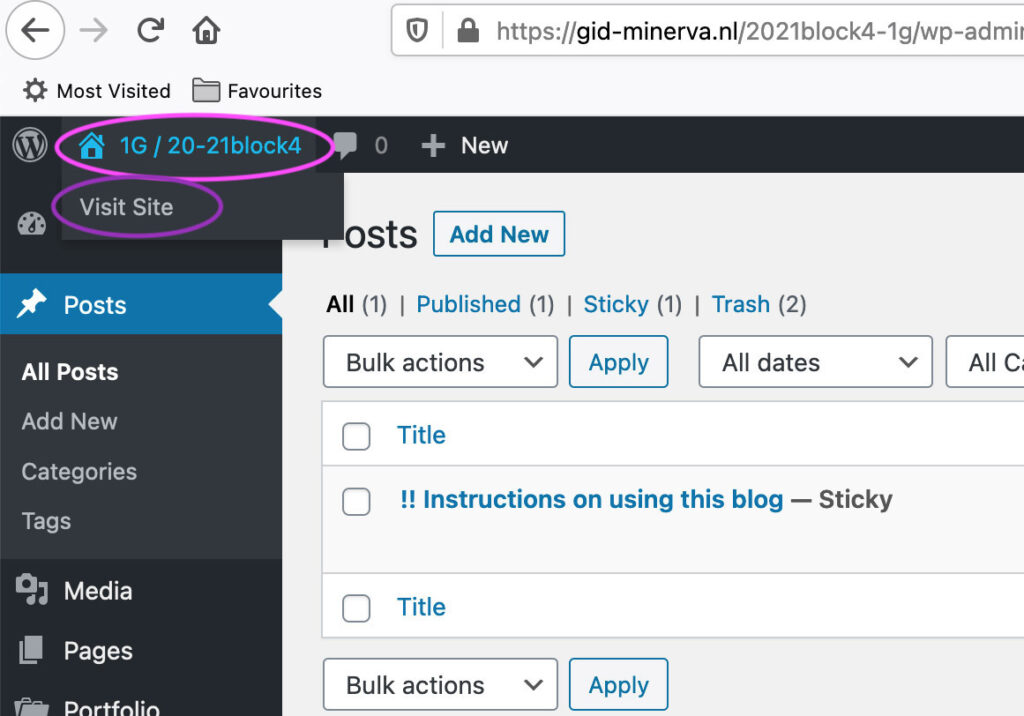
Or you als can visit the site directly from the wordpress (click home-icon on top left > click ‘visit site’, see screenshot)
– –
Technical hints
Always remember to save what you do by clicking the ‘Publish’ / ‘Update’ button (at the top-right of your screen)
After logging in you can start creating a post by
> left sidebar > Posts > Add new
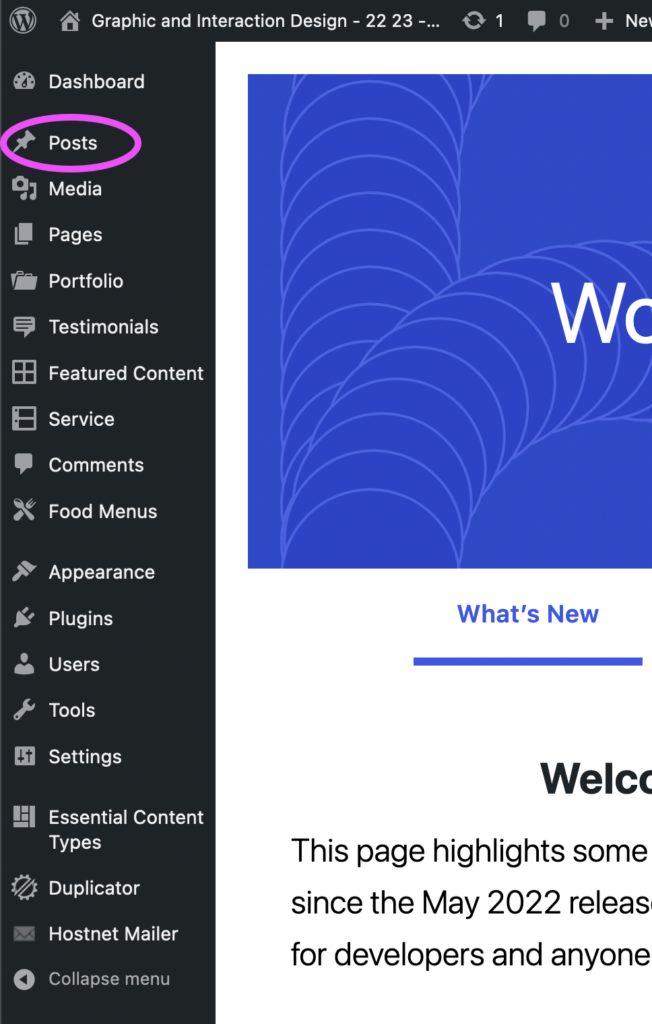
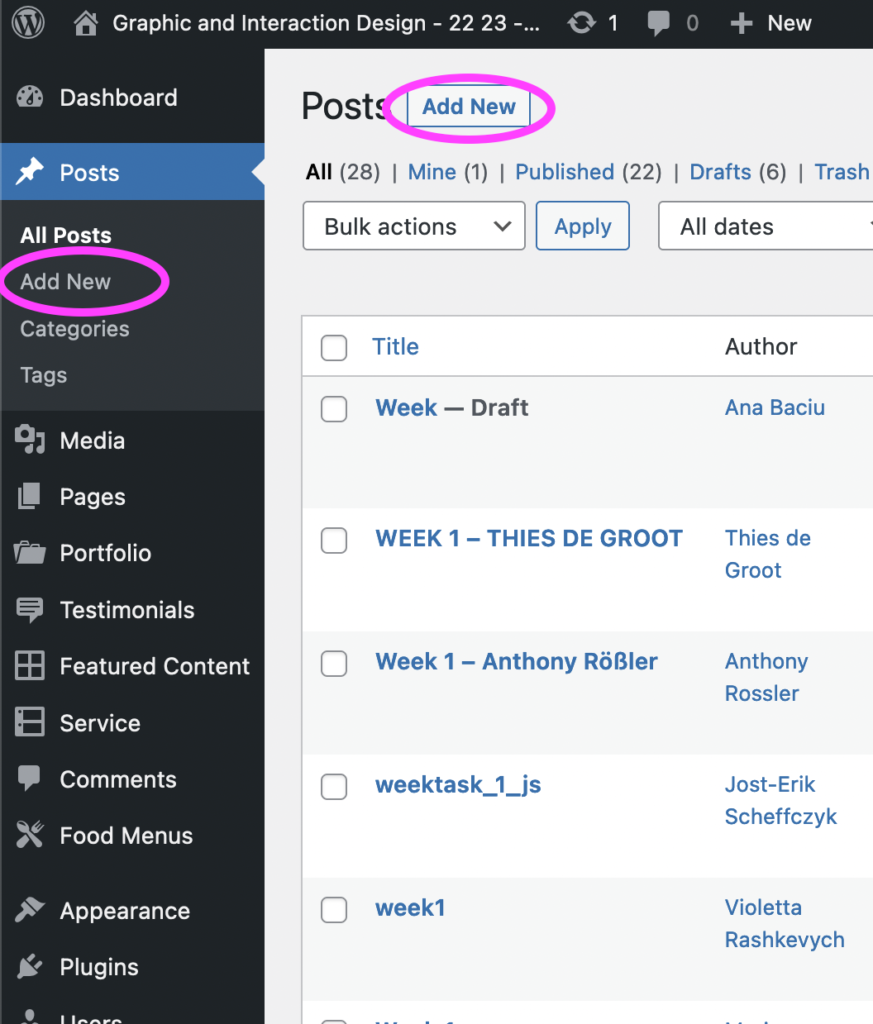
With your first post you will see an introduction how the ‘Blocks’ system work. I recommend you watch this.
Type ‘return’ : you will create a new block
Type ‘Shift-Return’ for a new textline
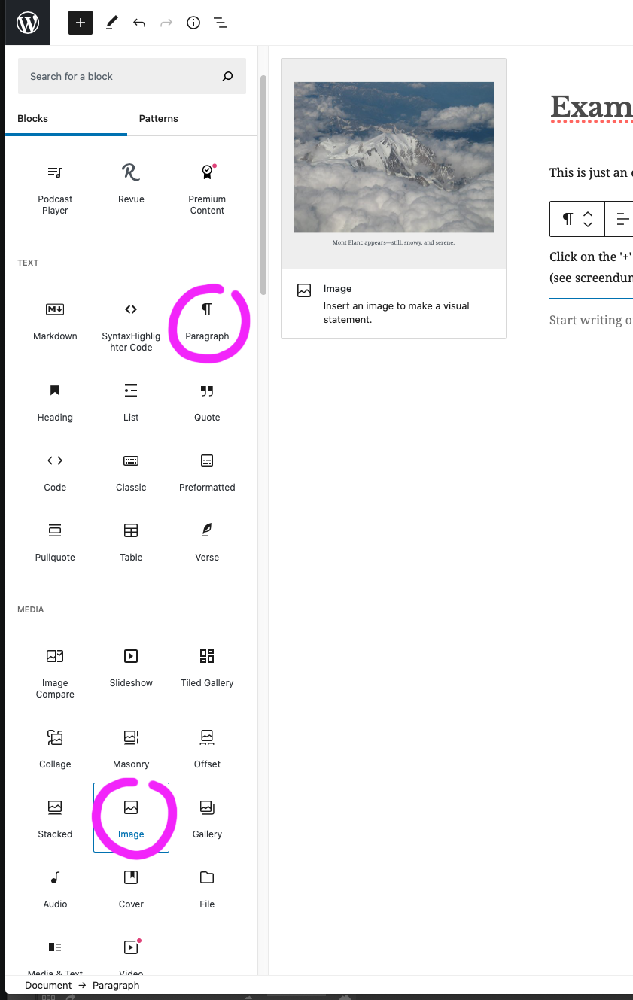
On the right a ‘+’ appears: click on it and you get a menu where you can choose what kind of content you want to use – ‘Paragraph’ and ‘Image’ you will use the most.
(see screendump below)
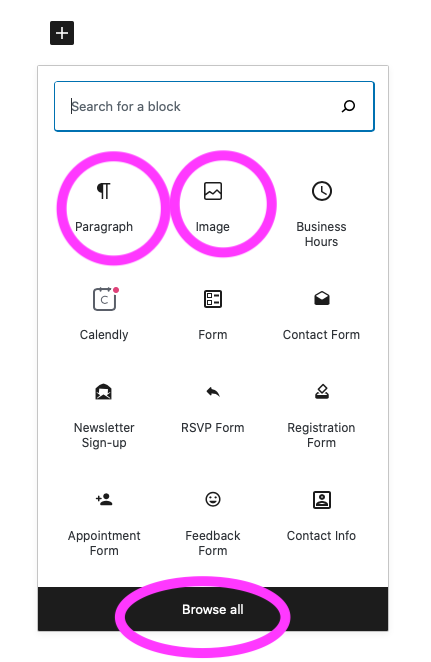
If you don’t see the buttons ‘Paragraph’ and ‘Image’ in this menu: click on ‘Browse all, the you will see them, along wit a lot of different features.
(see screendump below)
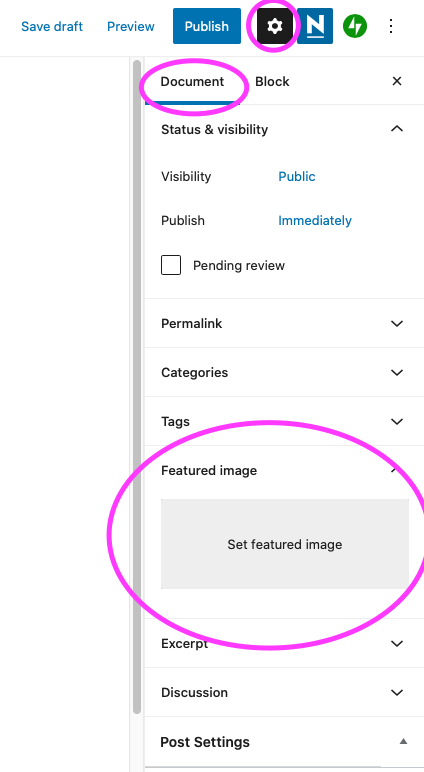
FEATURED IMAGE
When creating a post, the first image will not automatically be shown on the homepage, you have to make this image a ‘featured image’
You do not have to upload it again, choose the image from the media library!
IMAGES
Important: Keep the size of your images small:
Maximum upload size per image is 1MB
Your files will be seen on screen, this means high resolution is not necessary for this blog, 700 pixels wide and/or high is sufficient.
Of course you als can use a link to a pdf which you have uploaded (for instance on your GoogleDrive, Hanze dropbox, a website, Dropbox etc.).
Copy the url, paste it in your post and it will be automatically become a highlighted link in the post.
Video: do not upload video’s. Upload your video somewhere else (vimeo, youtube, etc) and on this blog use a link to this video
If you have uploaded images you don’t use, please remove them from the ‘Media’ page
How to downsize an image wich is too big to upload
– in Photoshop
– on a mac: open the image in ‘Preview’ app > click on ‘Show Markup toonbaar’ (icon: circle with pencilpoint) > click on ‘Adjust Size’ (icon: rectangle with two arrows)
– online are several websites which let you resize images
– mail the images to yourself chosing the option ‘medium size’
Tip: When changing your image, you might want to rename it in order to keep the original image intact.
REMOVE UNUSED IMAGES
It can happen you have uploaded images you don’t use.
Please delete these unused images from the ‘Media page’
> Left sidebar > Media > click the image you want to remove > a new window opens > click on ‘Delete permanently”
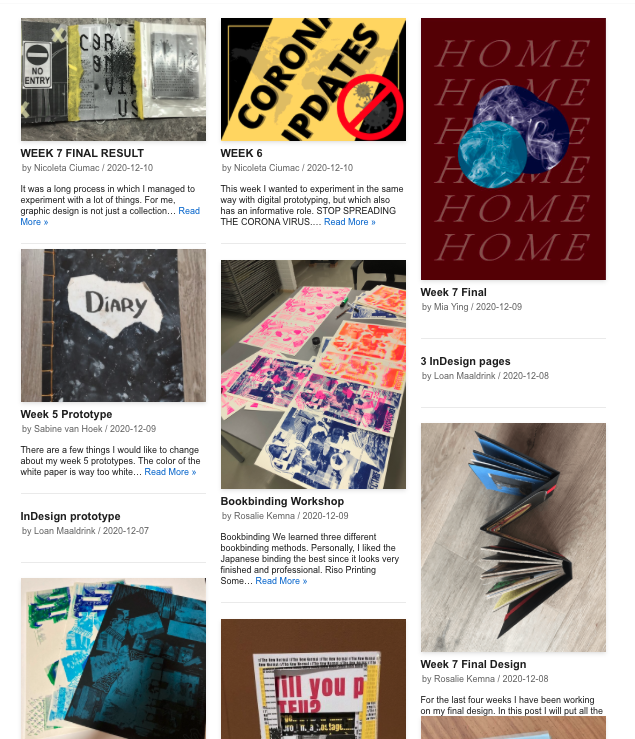
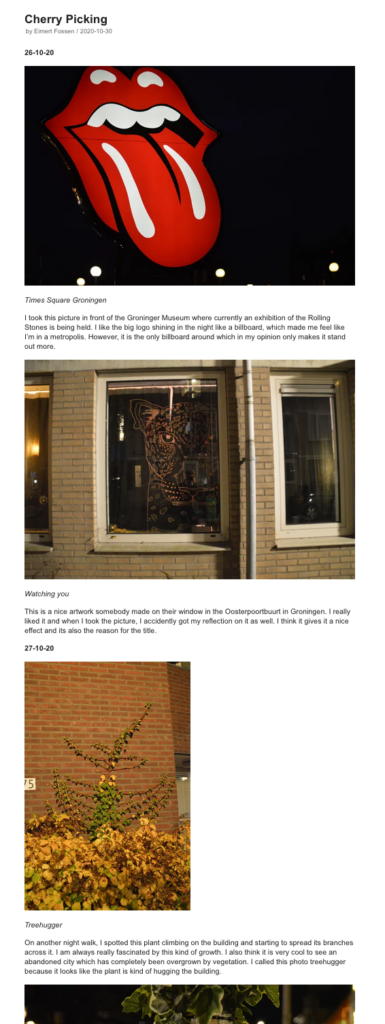
The homepage of the blog will look something like this (left) and a post might look something like this (right) – this is the most simple design of a post, if you want you can experiment with the possibilities of lay-out . Do not make images to small, remember the whole point of this blog is to give insight in your process and work.